Resource Governor in SQL Server
 by
by If you suffer from runaway queries, if you have several database applications with unpredictable fluctuation in workload, or if you need to ensure that workloads get the memory or CPU they need according to certain priorities, then you need Resource Governer.
A trend over the past 3 or 4 years has been to consolidate and/or virtualize so that you can do more with less. You can also look to a feature that first appeared in SQL Server 2008 Enterprise Edition called Resource Governor to help you stretch your resources. As its name implies, Resource Governor lets you control the resources available to SQL Server. However, Resource Governor is not just about limiting the resources your SQL Server uses but also about providing a guaranteed minimum, letting you dictate and monitor how a SQL Server instance behaves. You can currently use Resource Governor to govern two resources: CPU and memory.
If you are an IT pro or DBA responsible for managing high availability, virtualization, or scaling, this article is for you. We will explore the three Ws-what, when, and why-regarding Resource Governor. Along the way, we will look at a schematic explanation of how Resource Governor handles requests from different clients, some best practices for using Resource Governor, and how to set up and disable it. Let’s get started!
What Is Resource Governor?
You may have heard of something called rate limiting or throttling bandwidth, which ensures that you do not use up all the bandwidth available when you are downloading or surfing the ‘net and bog down other users. Resource Governor works similarly, ensuring that one runaway query doesn’t consume your entire server’s firepower. Resource Governor not only gives you the ability to cap the maximum usage, but it also lets you set the minimums, providing the right resource level to the right application or user.
When you think about Resource Governor, keep these three fundamental components in mind: resource pools, workload groups, and classifier functions. The CPU and memory dedicated to the SQL Server are the resources, and these can be pooled to various applications or users. A small chunk of these two resources is known as a resource pool. A workload group is a set of requests you define, and the classifier function directs the incoming request to a specific workload group. Let’s look closely at each of these components.
How Does Resource Governor Work?
We have seen Resource Governor’s three main components separately. Now let’s look at how they work together. We will use the same resource pools (POOLA and POOLB), workload groups (UserA, ReportApp), and classifier function (Class_funct) that we created earlier to examine how Resource Governor handles the flow of requests.
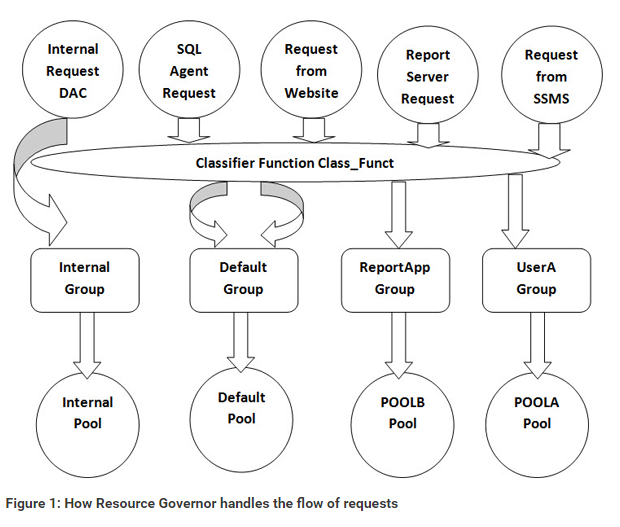
If you look carefully at the classifier function we created, you will see that it checks the name of the application that the request is coming from and handles two cases: ‘%MANAGEMENT STUDIO%’ and ‘%REPORT%’. All other requests are “thrown on the floorâ€-the classifier function does not handle them. Therefore, when a request from SQL Server Agent or the website (IIS) comes through the classifier function, it does not return a group name because it does not handle those requests. Because any unhandled request from the classifier function goes to the default group, which in turn sends it to the default pool, those requests will end up in the default pool.
Let’s look at the other two requests in Figure 1. One is from a report server, and the other is from SQL Server Management Studio (SSMS). In the classifier function, we defined that if the application name is SSMS, the return value is UserA. That means that the request will be sent to the workload group UserA, which was created by specifying a resource pool of POOLA. So the request from SSMS will go to the POOLA pool. When the application name is Report Server, the classifier function returns ReportApp as the workload group. The ReportApp workload group was created with the USING POOLB clause, so the request from the report server will be directed to the POOLB resource pool.
Some Resource Governor Misconceptions
In some cases, Resource Governor will act differently than how it is set up. Let’s look at a few of these cases.
- No resource contention. Although you have set up some limitation to the resources for a particular pool, you might find cases when the limits are not taken into account. Consider a scenario where you have set up a pool with a CPU cap of 25%. If at the time of executing a task in that pool there are no other active or workable SPIDS in other pools, this cap will not be taken into account.
- Importance. Let’s say you have two tasks: Task A with importance of HIGH, and Task B with importance of LOW. These settings do not mean that Task A will execute first, and then Task B will be executed. Importance is nothing but a numeric weight given to a request. What the importance settings actually do is to tell the scheduler to give 3 out of 4 units of work to Task A and the other one part to Task B. Both tasks can execute simultaneously.
- Waiting or pre-emptive state. If a query is waiting for other resources such as I/O, another query that has a cap set might use all available resources even though the first task is still active. That is because Resource Governor does not recognize a task that is in a WAITING for resource mode.
- Off–limit requests. There are quite a few requests that are off limits to Resource Governor. Extended stored procedures, for example, are usually off limits, including Database Mail, linked server queries, and COM/OLE automation.
Resource Pools
By default, there are two resource pools: internal and default. You cannot alter the internal pool in any way because it is reserved for SQL Server’s internal processes. But you can alter the default pool. You can also create additional user-defined resource pools, up to a maximum of 18. The permission required to create a resource pool is CONTROL SERVER.
For each pool, you can configure the MIN and MAX for CPU and memory. For CPU, the MIN and MAX settings let you control the CPU usage for each pool. For memory, instead of having one memory broker for the whole instance, these settings let you have one memory broker and two resource semaphores for each pool to handle memory management. Resource semaphores are used for synchronization.
The following code shows two examples of how to create user-defined resource pools using T-SQL.
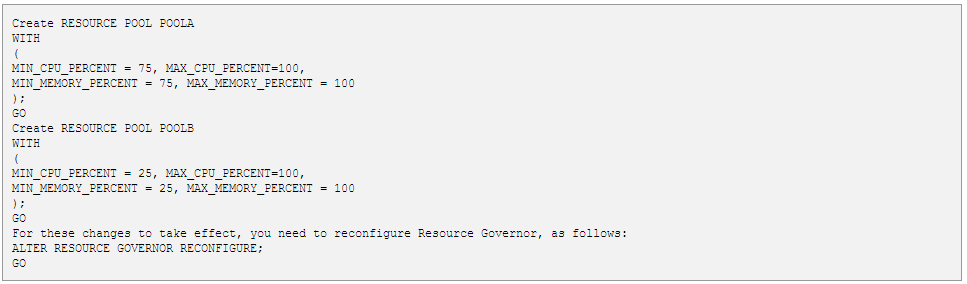
For these changes to take effect, you need to reconfigure Resource Governor, as follows:

You have four options when creating user-defined pools:
- MIN_CPU_PERCENT: This setting is the guaranteed average CPU for all requests in that pool, and it goes into effect only when there is CPU contention. The value can range between 0 and 100, but keep in mind that the sum of all MIN_CPU_PERCENT settings for all pools must not exceed 100%. When there is no activity in a particular pool, the CPU from that pool is available for other pools.
- MAX_CPU_PERCENT: This setting ensures that the maximum CPU that can be used by this pool when there is a CPU contention is not more than the specified value. The value can range between the MIN_CPU_PERCENT and 100. The maximum cannot be less than the minimum or equal to 0.
- MIN_MEMORY_PERCENT: When you apply this setting for the pool, you are asking the pool to acquire this much memory, whether it is being used or not. In contrast to the minimum CPU setting, the minimum memory setting will not allow that memory to be freed for other resources even if this pool is idle, so be careful when applying this setting.
- MAX_MEMORY_PERCENT: When there are requests running in this pool, the maximum memory that can be allotted cannot be more than what is specified in this setting. The MAX_MEMORY_PERCENT should not be less than the MIN_MEMORY_PERCENT.
Note that although the resource pool is set up for MIN and MAX CPU and memory usage, there are exceptions when these settings will be overridden. If the internal resource pool needs all the CPU that is available to do a certain task, it will override the user-defined values. Remember that resource consumption by the internal pool cannot be altered, and it has priority over all other pools. Also note that if you have many resource pools, your cache size will be very large because each resource pool will have its own data and procedure cache.
Workload Group
The workload group, as its name implies, groups a set of similar tasks or queries and routes them to a specific resource pool. We saw that the resource pool can control CPU and memory resources. The workload group provides you with additional controls that you can leverage to get the most out of Resource Governor. Using workload groups, you can prioritize and adjust the resources available for each set of defined tasks or queries.
As with the resource pools, by default, there are two workload groups: internal and default. You can assign a workload group to only one resource pool. But one resource pool can have multiple workload groups. You cannot assign a workload group to the internal group. The permission required to create or alter a workload group is CONTROL SERVER.
The following code shows you how to create two workload groups using T-SQL:

You need to follow all modifications to Resource Governor components with a reconfigure statement:

In this example, POOLA and POOLB are user-defined resource pools. If you do not specify the USING clause, the workload group will be assigned to the default pool. Let’s look at some other parameters you can use when creating a workload group:
- IMPORTANCE: This parameter lets you specify the importance of the incoming request with respect to that group. You can provide one of three values: LOW, MEDIUM (the default value), or HIGH. Importance does not mean priority as it does with the windows scheduler. The value of importance has no effect on other pools. Importance is used to position the request in the list of the same scheduler. Also note that if there are enough schedulers available and you have one query with HIGH importance and one with LOW importance, the two queries can run concurrently. The current ratio between the three values of importance is 1:3:9, where 1 is LOW, 3 is MEDIUM, and 9 is HIGH.
- REQUEST_MAX_CPU_TIME_SEC: This value specifies the maximum amount of CPU time that will be allocated for this query or task request. The value must be greater than or equal to 0. A value is 0 means there is no limit. This parameter works slightly different from the way Query Governor works. When Query Governor looks at a plan and finds that it exceeds the time specified, it will not attempt to run the query. But in a workload group, the query will continue to execute even when it takes more time than specified in this parameter. An alert will be raised the first time it exceeds the time limit, and you can find details in the event class CPU Threshold Exceeded, which returns CPU in milliseconds, Type of Event, GroupID, OwnerID, SPID, and StartTime. Keep in mind that the detection sweep runs every 5 seconds and might miss events that exceed the specified threshold by less than five seconds. Because of this, don’t be discouraged from setting a value less than 5 seconds. You can set the parameter value for 3 seconds and still get an alert when the query or task runs more than 3 seconds.
MAX_DOP: This value specifies the maximum degree of parallelism allowed for a parallel request. Values must range between 0 and 64. A couple of things to remember when setting the value for MAX_DOP are:
- MAX_DOP as a query hint overrides the workload group MAX_DOP setting as long as the query hint value is not above the value of the group.
- The MAX_DOP value in a workload group overrides the value set by sp_configure at the database level.
- The MAX_DOP setting will have no effect if the query is marked as serial at compile time.
When a query is limited via the workload group against parallelism, the graphical plan will still show parallelism.
REQUEST_MEMORY_GRANT_TIMEOUT_SEC: This value specifies the maximum time in seconds that a query will wait for work buffer memory to be available so it can be granted. The default value is 0. Let’s consider two scenarios for this parameter:
- Scenario 1: There is a little pressure for memory on the server because of other operations. In this case, the query will wait for the specified time, and if the memory is still not free, the query will take whatever is available and continue with the execution of the query. This can result in lower performance for the query.
- Scenario 2: There is high memory pressure. When there is high memory pressure within the pool, the query will not execute. It will return a timeout error.
- REQUEST_MAX_MEMORY_GRANT_PERCENT: This value specifies the maximum amount of memory that can be allocated from the pool. The allowed range is between 0 and 100, with a default value of 25. This value is relative to the maximum memory that has been allocated to the particular pool. REQUEST_MAX_MEMORY_GRANT_PERCENT is a very tricky setting. If you have a high value-70% for instance-the rest of the queries or tasks that hit this pool will suffer memory pressure. If the value is 0, queries that include HASH JOIN or SORT will not execute if they come to this workload group.
- GROUP_MAX_REQUEST: This value specifies the maximum number of concurrent requests that can run at any given time within that workload group. The value must be 0 or greater, with the default being 0, allowing an unlimited number of concurrent requests. One thing to keep in mind is that if the database engine determines that having more than the number of specified connections can resolve or avoid blocking or deadlocking, it will override this value.
Classifier Function
A classifier function, one of the most important parts of Resource Governor, is a user-defined function (UDF) that returns the name of the pool where the incoming request will be directed to. The classifier function resides in the master database, and although you can have multiple classifier functions residing in the master database, they cannot be used concurrently. This function has no effect on the internal pool.
The classifier function is the biggest bottleneck in Resource Governor because all queries and tasks that are not internal must be classified by this UDF. Here’s how it works. When a client attempts to log on to SQL Server, a user session is established with the instance. The logon trigger fires after the authentication phase of the log-in finishes but before the user session is actually established. After the logon trigger is fired, the classification is attempted. You can use one of the following system functions to get the details of the query or task so that it can be directed to the right pool: HOST_NAME(), APP_NAME(), SUSER_NAME(), SUSER_SNAME(), IS_SRVROLEMEMBER(), or IS_MEMBER(). The UDF can also use lookup tables to configure the request to the proper pool.
Note that you need to create the classifier function with SCHEMABINDING. The following code shows an example of creating a classifier function based on the resource pool and workload group we created earlier:
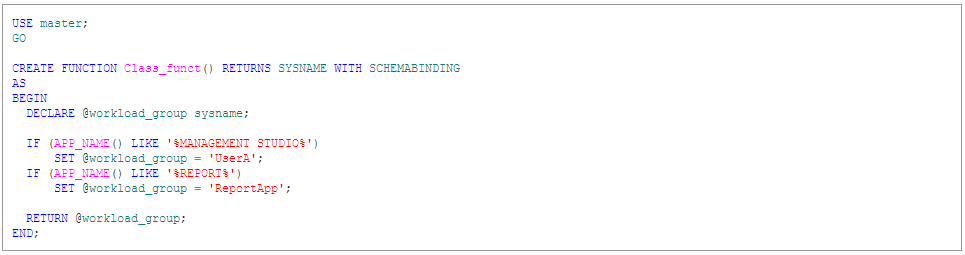
Although the UDF is now created in the master database, it is still not configured as a classifier function. To configure it, you need to issue an ALTER RESOURCE GOVERNOR command, as follows:

Now the Resource Governor classifier will use the workload group returned by the classifier function to send the request to the correct workload group.
There are three scenarios when the request or task will be classified to the default group:
- There was a general classification failure from the classifier function.
- The classifier function returns a non-existing workload group.
- The classifier function has no criteria to classify the function.
Note that when the UDF is assigned as a classifier function, you cannot alter or drop the function. To do so, you will need to reconfigure Resource Governor to use an alternative function or even NULL. With NULL, all requests will go to the default pool. The constraints applied on the default pool will still be applicable to the tasks. The only exceptions are the internal requests and requests from the Dedicated Administrator Connection (DAC)
When and Why Use Resource Governor?
Resource Governor is a powerful tool if used wisely. Let’s look at how you can use it to safeguard your resources in different scenarios.
Runaway Queries
You have probably experienced the problem of a user running a report for a very large date range, unleashing a query that could run for 10 to 15 minutes. These kinds of runaway queries can cause quite a few performance problems, and you probably had to kill the SPID associated with it.
Resource Governor lets you play in safe in these types of cases, letting you place a ceiling on the default pool for memory and CPU and create a buffer that takes care of generic queries that could come from report servers and ad hoc queries. You can then create a workload group and resource pool that has more resource assigned to it and have the classifier function direct requests from an application that you trust and is more important to the new pool.
Parallel Processing
Typically when you identify jobs or stored procedures that generate an excessive amount of parallelism, you have two options. One option is to set the maximum degree of parallelism at the server level, and the another option is to add a hint (MAX_DOP) in the statement that causes parallelism. Both methods have their advantages and disadvantages (which are beyond the scope of this article). But by using Resource Governor, you have another option: You can limit parallelism to one or more workload groups.
All you need to do is create a workload group using the hint for maximum degree of parallelism to whatever number you want (depending on the number of processors). You then just need to ensure that the classifier function can identify the stored procedures that cause parallelism and can redirect those SPIDS to the correct pool. One way of creating a classifier function that can identify which stored procedures have issues with parallel processing is to create a lookup table that contains a list of all those stored procedure names. The classifier function can select from the lookup table.
Server Consolidation
In this age of virtualization and consolidation, Resource Governor can have a big hand to play. Let’s say that you have four databases residing on four different servers and you want to consolidate onto one powerful server that hosts all four databases. How can you assure your organization that the databases will not have performance issues due to shared resources? This is where Resource Governor can help. Just create four different resource pools, one for each database, where you specify the minimum and maximum usage of CPU and memory. This approach gives each database its own dedicated memory and CPU settings. However, Resource Governor has no control over the I/O subsystem, so it is still possible to run into I/O bottleneck for these databases.
Resource Monitoring
Imagine a scenario where you have three databases on one server. Each database is owned by a different customer of your data center. Your service level agreement (SLA) might include a clause that states that your company will send a monthly report about resource usage. You might even be billing the customers based on resource usage. Resource Governor can be very helpful in this situation.
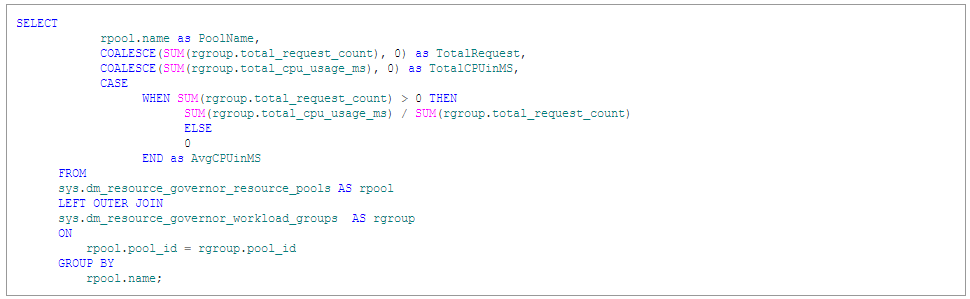
By creating three pools, one for each customer, you can monitor the resource usage for each customer. With the introduction of new data management views (DMVs), it is easier to monitor the resource usage for each group. You can collect this information by selecting from the sys.dm_resource_governor_workload_groups DMV. Note that you could lose data from the DMVs because they can be reset manually, and they are reset when SQL Server is restarted. To prevent data loss, be sure to take a regular snapshot by inserting the relevant values from the DMV into a table that you create periodically.
To get the data for one specific group, you can always filter it from the DMV. Here is a sample query that returns the pool name, total request, total CPU used, and average CPU used by each group:
Disabling Resource Governor
We have seen what Resource Governor is, how it works, how to set it up, and why you might want to use it. Now let’s see how you can safely and effectively disable Resource Governor and clean up everything we did by following these five steps:
We have seen what Resource Governor is, how it works, how to set it up, and why you might want to use it. Now let’s see how you can safely and effectively disable Resource Governor and clean up everything we did by following these five steps:
- To disable Resource Governor, first make sure you remove the entry for the classifier function and then disable Resource Governor by using the following T-SQL statements:

- For this command to take effect, the sessions should all be killed. The best way to do that is to restart the SQL Server service by using the SQL Server Configuration Manager. Note that when you restart SQL Server or kill sessions, there is a chance that you might lose data, so make sure you have regular backups for the database.
- Next, you need to clean up the work load groups, but make sure you do not try to drop the two default workload groups (internal and default). If you have created a lot of workload groups, it is better to generate a script to drop them all in one go, as the following example T-SQL code does:

Copy the output from this query, paste it to an SSMS query window, and execute it. This ensures that all the workload groups are deleted.
- Now you can drop the resource pools, either individually or by generating the DROP script as we did above:

Then copy the output of the above query into a new SSMS Query window and execute it. Keep in mind that you do not remove the default and internal pools.
- The last step is to reconfigure Resource Governor by executing the following command in a query window:

Best Practices to Live By
To get the most benefit from Resource Governor, here are some best practices that you should follow.
- Dedicated Administrator Connection. Make sure you have the DAC enabled so that if there is any problem with the classifier function, you can use DAC to bypass it to either correct the classifier function or disable it. If you do not have DAC enabled, the only other way to bypass the classifier function is to restart SQL Server in single-user mode.
- Classifier function. The classifier function poses the biggest bottleneck threat when you have Resource Governor enabled. A badly written classifier function can bring your SQL Server to its knees. To make the classifier function robust, follow the age-old KISS principle: Keep it simple, stupid. If your classifier function has to look up information from a table to make decisions, make sure your lookup table has proper index support. Do not have the classifier function do look-ups on multiple tables or tables with lots of data. And make sure the table’s statistics are updated regularly and that maintenance is done regularly on that table. Also try to simulate load in a test environment to test your classifier function and ensure that it will work efficiently when it is implemented in production.
- Default pool and workload group. Always leave enough resource for the default pool and workload group. However you write your classifier function, some queries or tasks will inevitably seep through to the default pool. And if the default pool does not have enough resources, that query or task could cause slowdowns.
- Monitor and monitor again. Make sure you monitor regularly because the applications that access the database keep evolving. You might even have a new application join the mix. You have to keep all those factors in mind.
- Memory settings. Be careful when you set the minimum and maximum memory for the pool. Even if there are no requests, memory will not be easily returned to the system-even if the particular pool does not use it.
Note that although this article explains how to set up and remove Resource Governor by using T-SQL, there is also a user-friendly GUI that you can use as a part of SSMS.
Hope that you try out Resource Governor for yourself now that you’ve seen what it is, how it works, and when and why it can help in your SQL Server implementation. Resource Governor gives you finer control over your resources. But use it wisely-it can give you trouble if you are not careful.
Statistics Says It All
16
Years of Experience
3000
Gratified Students
100
Training Batches
9600
Training Hours
Subscribe
Please subscribe our technical blog to get recent updates.